
How to find Facebook URL: Updated 2026 guide for all devices
- Feb 2
- 3 min read
Finding a Facebook URL might seem simple, but with constant updates to the platform and different devices in use, it can get confusing. Whether you want to share your profile, a friend's page, or a business account, knowing how to locate the exact URL is essential. This guide walks you through the steps for all devices in 2026, making it easy to find and share Facebook URLs quickly.
How to find your Facebook URL on a desktop or laptop
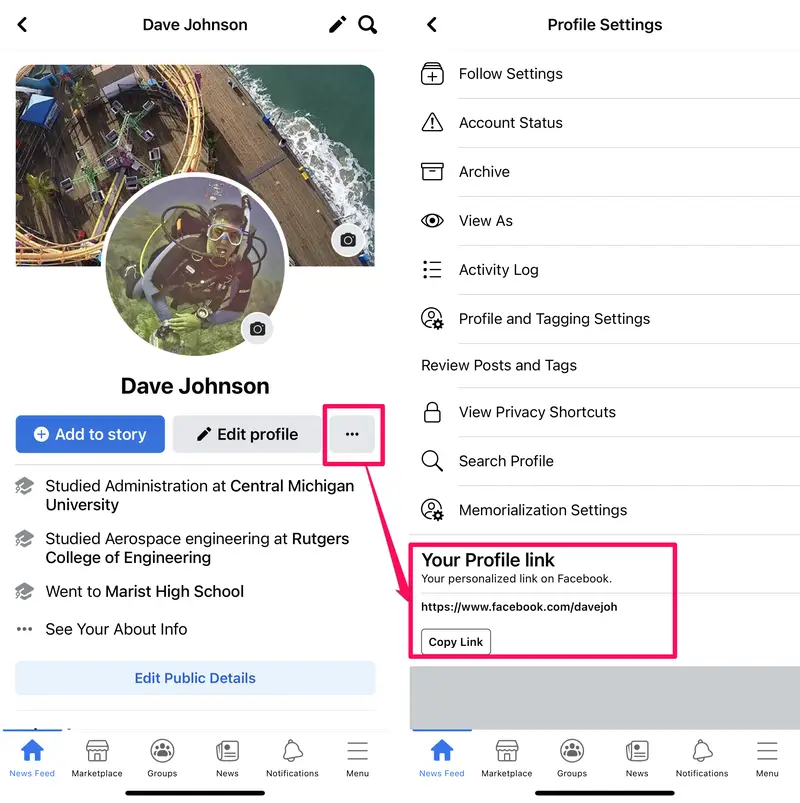
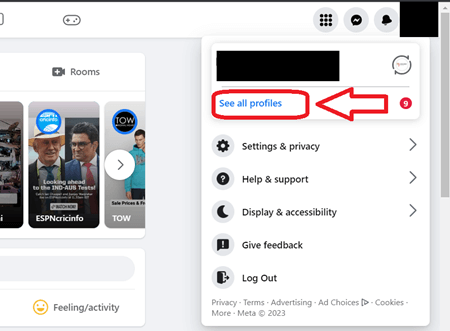


When using a computer, the process to find a Facebook URL is straightforward but varies slightly depending on whether you want your profile, a friend's profile, or a page.
Steps to find your personal profile URL
Open your preferred web browser and go to facebook.com.
Log in with your credentials.
Click your profile picture or name at the top right corner to open your profile page.
Look at the address bar of your browser. The URL shown there is your Facebook profile URL. It usually looks like this:
`https://www.facebook.com/your.username`
or
`https://www.facebook.com/profile.php?id=123456789`
How to find a friend's Facebook URL
Search for your friend's name using the search bar at the top.
Click their profile from the search results.
Copy the URL from the browser’s address bar.
Finding a Facebook page URL
Use the search bar to find the page.
Click on the page name.
Copy the URL from the address bar.
Tip: If the URL has a username (like facebook.com/username), it’s easier to remember and share than a long string of numbers.
How to find Facebook URL on mobile devices (iOS and Android)
Mobile apps often hide URLs, but you can still find them with a few taps.
Finding your profile URL on the Facebook app
Open the Facebook app.
Tap your profile picture or your name at the top of the feed.
Tap the three dots next to "Add to Story" or "Edit Profile."
Scroll down and tap Copy Link to Profile. This copies your profile URL to the clipboard.
Finding a friend's profile URL on mobile
Search for your friend using the search icon.
Open their profile.
Tap the three dots on their profile page.
Select Copy Link to Profile.
Finding a Facebook page URL on mobile
Search for the page.
Open the page.
Tap the three dots under the page’s cover photo.
Tap Copy Link.
How to find Facebook URL on mobile browsers
If you use Facebook through a mobile browser instead of the app, the process is similar to desktop but adapted for smaller screens.
Open your mobile browser and go to facebook.com.
Log in if needed.
Tap the menu icon (three horizontal lines).
Tap your name to open your profile.
Tap the browser’s address bar to see and copy the URL.
For friends or pages, search and open their profile or page, then copy the URL from the address bar.
Tips for sharing and using Facebook URLs
Shorten long URLs: If the URL contains many numbers, use a URL shortener like bit.ly to make sharing easier.
Check privacy settings: If a profile or page is private, others might not see the content even if you share the URL.
Use usernames when possible: Custom usernames make URLs cleaner and easier to remember.
Bookmark important URLs: Save frequently visited profiles or pages for quick access.
What to do if you can’t find the Facebook URL
Sometimes, profiles or pages might not show a clear URL due to privacy settings or Facebook updates. Here’s what to try:
Check if the profile/page is active: Deactivated or deleted accounts won’t have accessible URLs.
Look for username changes: Users can change their usernames, which affects the URL.
Use Facebook’s search function: Search for the person or page and copy the URL from the profile or page.
Try desktop if mobile fails: Some features are easier to access on desktop versions.


Comments